
Searchable vs Scanned PDF
Updated by Khokhar Sab
A searchable PDF stores its words as text, so you can search, copy and have them read aloud. A scanned PDF stores each page as a picture, so the computer sees only dots. They can look identical on screen. To turn a scan into a searchable PDF, use OCR PDF, which reads the words and adds them as an invisible layer.
What is the difference between a searchable and a scanned PDF?
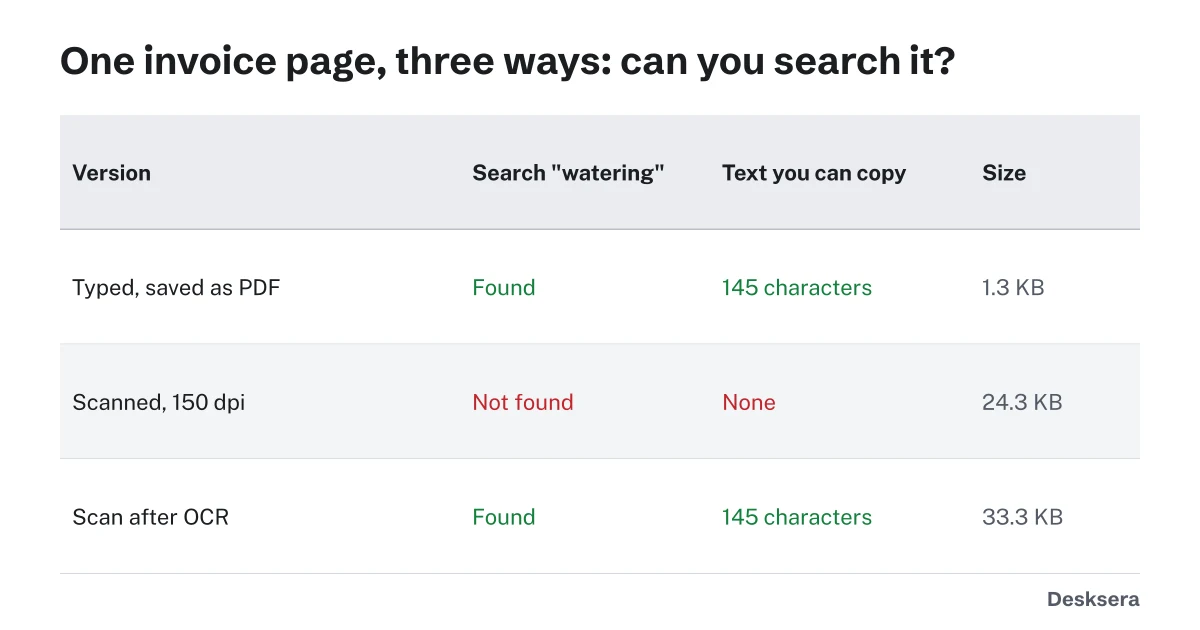
A searchable PDF holds real text: each letter is stored as a character with a position. A scanned PDF holds a photo of each page, with no characters at all. We made one invoice page three ways: typed and saved as PDF, scanned at 150 dpi, and the scan after OCR. Search and copy failed only on the plain scan.
| Version | Search finds "watering" | Characters you can copy | File size |
|---|---|---|---|
| Made from text (typed document saved as PDF) | Yes | 145 | 1.3 KB |
| Scanned at 150 dpi | No | 0 | 24.3 KB |
| The same scan after OCR | Yes | 145 | 33.3 KB |
How can I tell if a PDF is searchable?
Try to select a single word with your mouse or finger. If you can highlight just that word, the PDF has text. If the whole page highlights as one box, or nothing happens, it is a scan. You can also press Ctrl+F or Cmd+F and search for a word you can see: no result means no text.
Another quick check: PDF to Text names every page that has no text, so a mixed file, with some typed and some scanned pages, shows which pages need OCR.
How do I make a scanned PDF searchable?
Run OCR, optical character recognition, on it. OCR software looks at the picture of each page, recognizes the letters and adds them as text. Our OCR PDF does this in your browser: it read our scanned invoice in 0.7 seconds on a laptop and saved a searchable copy that looks exactly like the scan.
OCR PDF skips pages that already have text, so a mixed file only has its scans read, and it can straighten tilted pages before reading them. If you only need the words, choose Save as Text instead of a PDF.
What scan resolution do I need for OCR?
For ordinary print, 150 to 300 dpi is plenty. In our tests, 11-point text was read 100% correctly even at 100 dpi, but 6-point text was read only 16.7% correctly at 100 dpi, 93.3% at 150 dpi and 100% at 300 dpi. Scan small print at 300 dpi.
| Scan resolution | 6 pt text | 8 pt text | 11 pt text |
|---|---|---|---|
| 100 dpi | 16.7% | 90% | 100% |
| 150 dpi | 93.3% | 96.7% | 100% |
| 300 dpi | 100% | 100% | 100% |
Share of words read correctly on a softened, rough JPEG scan of known text, with the same Tesseract engine and English data our OCR PDF uses.
Higher resolution means bigger files, as our guide Why Is My PDF So Large? measures, so there is no gain in scanning ordinary letters at 600 dpi.
Does OCR change how my PDF looks?
No. OCR adds the recognized words as an invisible text layer behind the page picture, so the page looks exactly as scanned. Search highlights land on the right words because each word is placed over its picture. The file grows a little, by 8.9 KB in our test, mostly for the font the invisible text uses.
The one exception is straightening: if OCR PDF turns a tilted page straight, that page is replaced by the straightened picture. Recognition is not perfect, so check names and numbers that matter, especially in low-quality scans.
Have a scan to fix? Open OCR PDF, pick the language of the text, and save a searchable copy. Nothing is uploaded.
Tools in this guide
More guides
- Why Is My PDF So Large?What takes up the space in a PDF, measured, and how to fix each cause.
- How to Scan a Document on iPhone and AndroidFree built-in scanning on iPhone and Android, and how far a phone scan shrinks.
- How to Save a Webpage as a PDFBrowser steps for Chrome, Edge, Firefox and Safari, and why printing beats a screenshot.
Sources and further reading
- Tesseract OCR (Apache-2.0): the open-source recognition engine our OCR PDF runs
- ISO 32000-1 (PDF 1.7), section 9.3.6: Text rendering mode: mode 3, the invisible text that makes a scan searchable